Connect your Komga, Kavita or calibre server
Import comics straight from your own Komga, Kavita, calibre or calibre-web server. Make it reachable, connect it, then pick the issues you want.
Updated
If you keep your comics on your own Komga, Kavita, calibre or calibre-web server, LiveComics can import them straight from it. You browse your server inside LiveComics, tick the issues you want, and we download them on our side. Nothing has to be on the device you are holding.
Step 1: Make your server reachable from the internet
We download from our servers, not from your phone or computer, so your server needs an address that works from anywhere. It must start with https:// and use a name with a valid certificate.
These addresses only work at home, so they can't be connected:
- a number like
http://192.168.1.20:25600 localhost, or a name ending in.localor.lan- your normal Tailscale address, a
100.x.x.xnumber or ats.netname without Funnel
The free and simple fix is Tailscale Funnel. It gives your server a public address like https://my-nas.tail1234.ts.net, with no domain to buy and no router changes. Our guide walks through it in four steps: Komga and Kavita remote access.
To check, turn Wi-Fi off on your phone and open your server's new address. If its sign-in page loads, LiveComics can reach it too.
Step 2: Get your sign-in ready
- Komga: an API key is best. In Komga, open Account settings, then API keys, and make one just for LiveComics. A user name and password work too.
- Kavita: its OPDS URL. In Kavita, open Settings, then Account, and copy the OPDS URL. It already holds your key, so keep it private. If it starts with a home address, keep the part from
/api/opds/on and put your public address in front of it. - calibre: a user name and password. calibre's content server must use basic as its authentication mode.
- calibre-web: a user name and password, for an account that is allowed to download.
A user that can only download, not an admin, is the safest one to connect.
Step 3: Open Your library server
Open My Library and click From a link, next to + Add Comics.

A window called Add from a link opens. Under Or pick a file from, click Your library server.
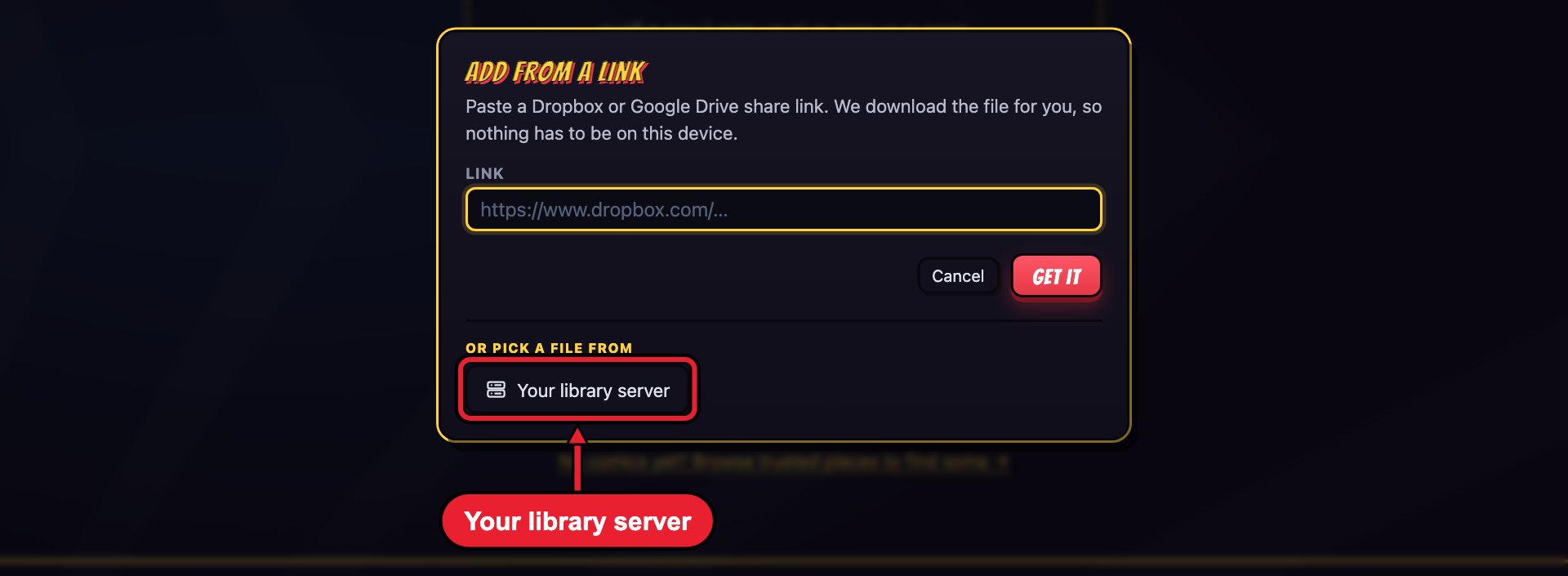
With a screen reader
- From a link is a button in the library's top bar, after + Add Comics.
- Your library server is a button inside the Add from a link dialog, after the link field.
Step 4: Connect
- Under Server type, pick Komga, Kavita, calibre, calibre-web or Other OPDS.
- Enter your server's https address. For Kavita, paste its OPDS URL instead.
- Paste your Komga API key, or enter your user name and password.
- Click Connect.
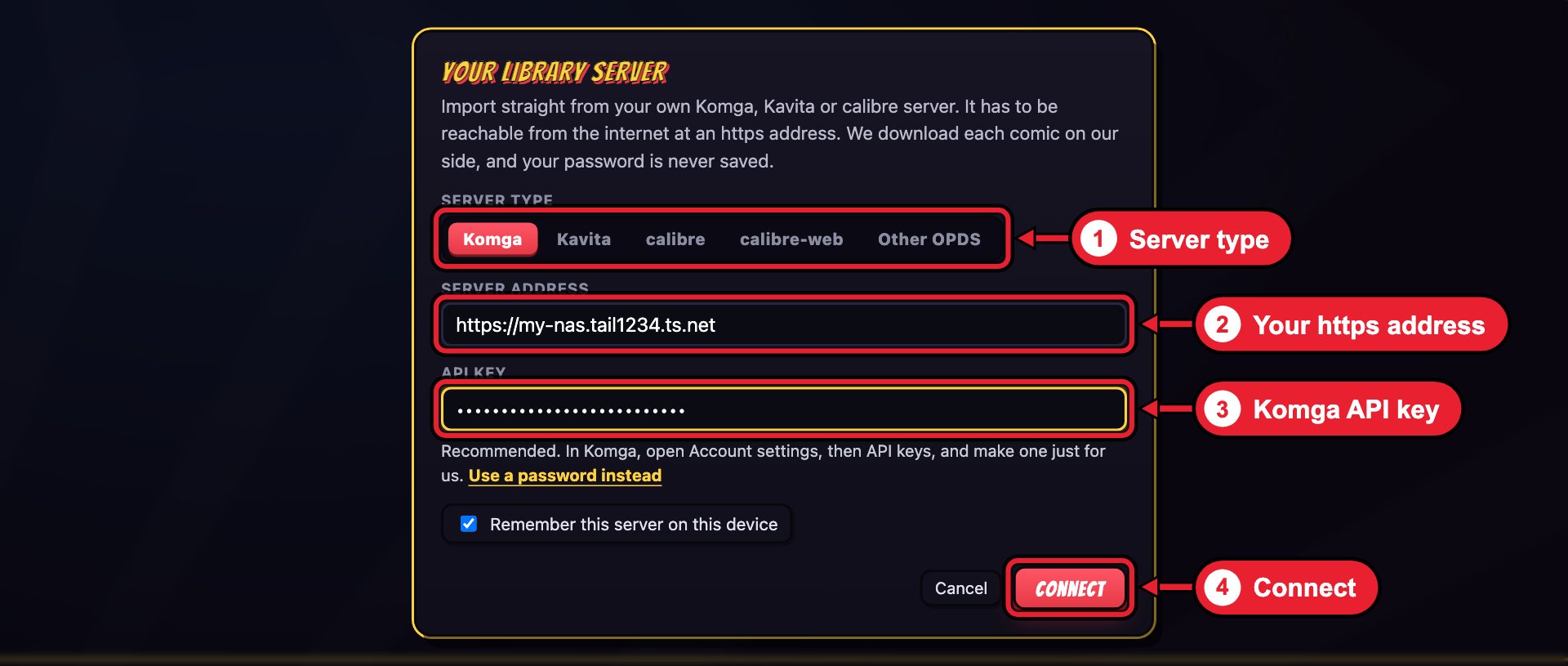
For Komga, calibre and calibre-web, the address you open the server at is enough. We find its catalog for you.
Tick Remember this server on this device and you won't have to paste the key or OPDS URL again. It is kept only on that device. A password is never saved: you enter it again next time. Your servers are listed under Your servers at the top of this window, and you can connect up to 10.
With a screen reader
- Server type is a radio group. The arrow keys move between the choices.
- The address field is named Server address, or Your Kavita OPDS address when Kavita is picked. The key field is named API key.
- After Connect, you hear "Connecting to your server", then "Connected to" and the server's type. If it can't connect, the reason is read out at once.
Step 5: Pick your issues
Your server's shelves open in the window. Click a folder to go into it, or search if your server supports it. Tick each issue you want, then click Add. The button counts your picks, like Add 2 comics.
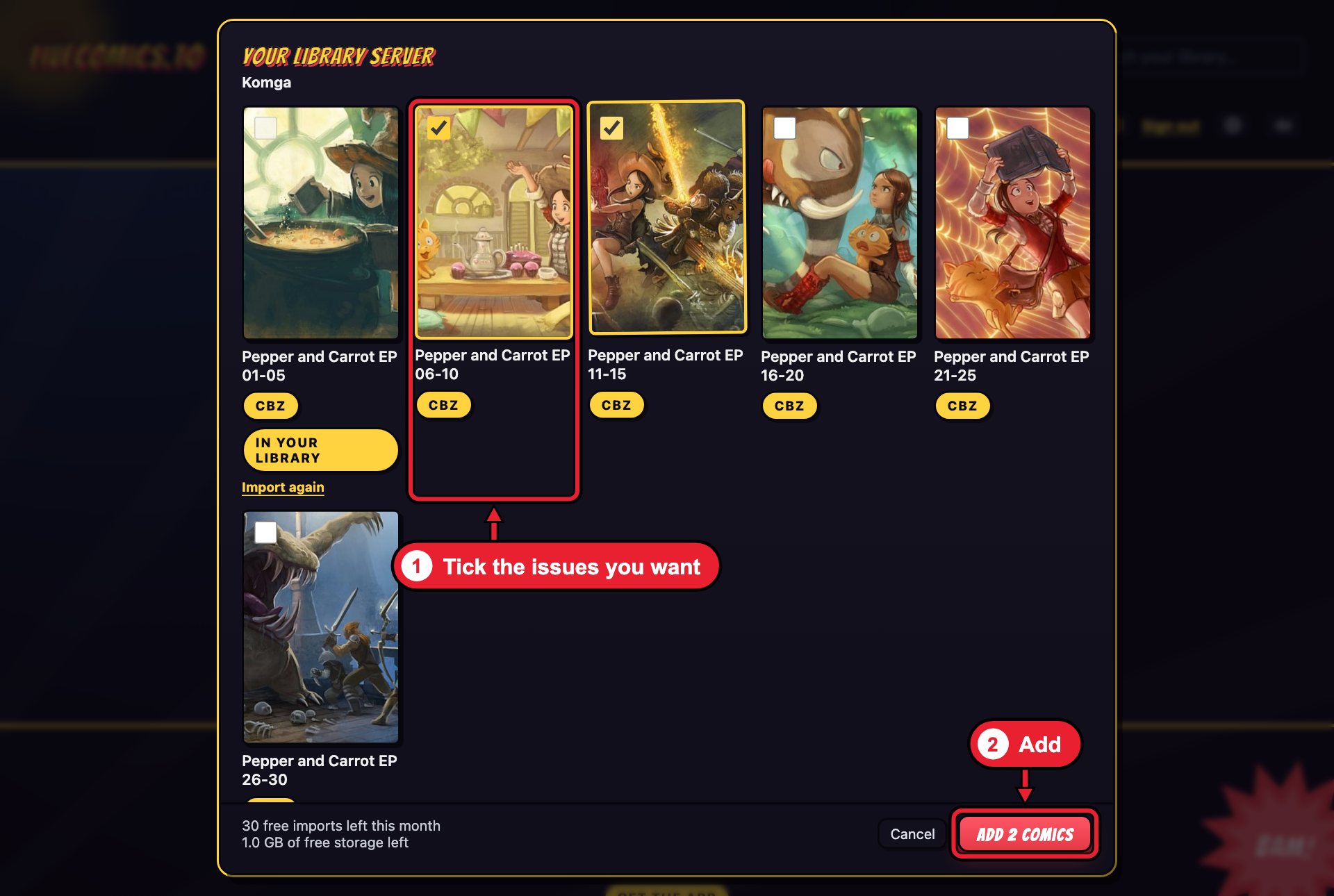
Issues you already imported show In your library, so you can see what is new. On a free account, the bottom of the window shows how many free imports and how much free storage you have left.
We download your picks two at a time, so it won't use your phone's data. When they have all downloaded, the usual import choices open, the same as in Add your first comic. The price line there shows what each choice costs before you add anything. If any couldn't be downloaded, each row says why: click Continue with and the number of comics to go on with the rest.
With a screen reader
- Each issue is a checkbox named with its title.
- The Add button's name includes the count, like Add 2 comics.
Step 6: If it won't connect
The window says what went wrong. The common ones:
- That address is only on your home network. Give your server a public https address first: Komga and Kavita remote access.
- We only connect over https. Use the address that starts with
https://. - We couldn't reach your server. Check that the server is running and that its address opens on your phone with Wi-Fi off.
- Your server's https certificate didn't check out. The address needs a valid certificate. Tailscale Funnel and Let's Encrypt both give you one for free.
- Your server didn't accept that sign-in. Check the user name and password, or make a new API key.
- Your server says this account can't download files. Turn on the download permission for that user in Komga or calibre-web.
- Your server asks for Digest sign-in. In calibre, set the content server's authentication mode to basic.
CBZ, CBR and PDF comics up to 2.6 GB each can be imported this way. EPUB books show on your shelves, but can't be imported from your server yet.
Still stuck?
Email [email protected]. A person reads every message. For billing, refunds and account questions, see Support.