The reader's buttons
What every button in the comic reader does, from play and subtitles to speed, sound levels and page view.
Updated
When a comic is open, click the middle of the screen to show the reader's buttons. Click the middle again, or press play, to put them away.
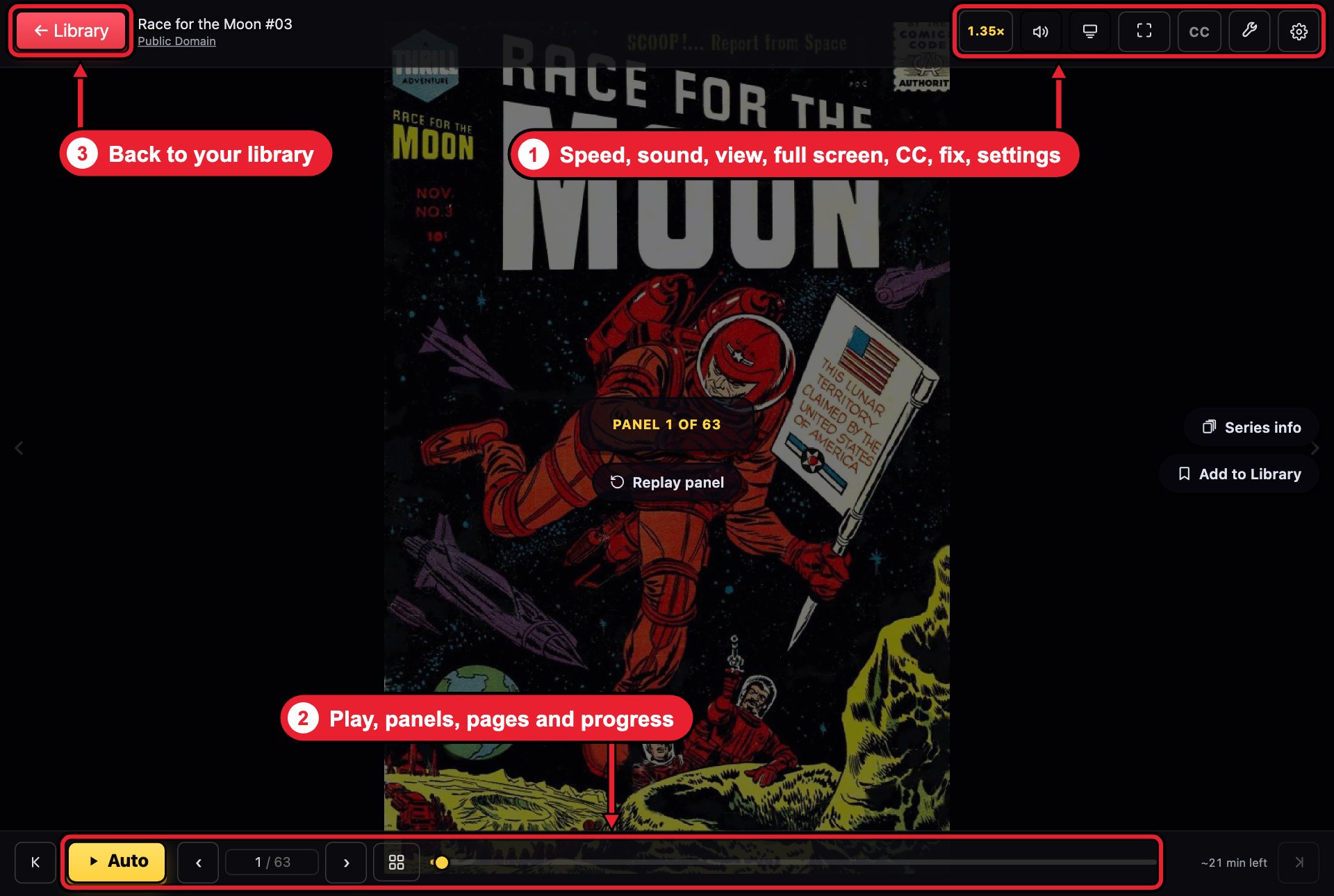
Along the top
- Library closes the comic and takes you back to your library. Your place is saved.
- Speed (it shows a number like 1.35×) cycles the narration speed in quarter steps, up to 3×.
- Sound levels (the speaker) sets the volume of the voices and the sound effects separately.
- Change view switches between one panel at a time and whole pages.
- Full screen fills the screen with the comic.
- CC turns subtitles on and off: every line of dialogue and every panel description, as text.
- Fix (the wrench) lets you switch the voice on a line or mute a panel's sound. It appears on comics you added yourself.
- Settings (the gear) holds the rest, including Panel descriptions, Sound captions and Reduce motion.
Along the bottom
- Auto plays and pauses. While the comic plays, it turns panels by itself.
- ‹ and › step back or forward one panel.
- The counter (for example 1 / 12) shows which panel you are on. Click it to jump to a panel by number.
- The page grid opens small pictures of every page, so you can jump to one.
- The progress bar shows how far through the comic you are, and the time left is at the far right.
- Previous issue and next issue, at the two ends, move through a series when the comic is part of one.
In the middle
The panel number sits in the middle of the screen. Clicking it puts the buttons away without changing whether the comic is playing. When you pause partway through a panel, a small replay button under it plays that panel again from the start.
Settings worth knowing
- Subtitles (CC): the same as the CC button.
- Sound captions: names the sounds as well as the dialogue, for reading with no sound, and for deaf and hard of hearing readers.
- Panel descriptions: the spoken description of each panel's art, when the comic has them.
- Reduce motion: fewer camera moves between panels.
For keyboard shortcuts and screen reader names, see Using LiveComics with a screen reader or braille display.
Still stuck?
Email [email protected]. A person reads every message. For billing, refunds and account questions, see Support.