A comic reader for the comics in your Dropbox
To read comics from Dropbox, copy the comic file's share link in Dropbox and paste it into LiveComics with the From a link button in your library. Our servers download the CBZ, CBR or PDF, so nothing has to fit on your phone, and the comic lands on your shelf on every device you sign in on. Importing it is free, and so is reading it page by page or one panel at a time.
How do I read comics from Dropbox?
Copy a share link to the comic file in Dropbox, then paste it into LiveComics. It takes about a minute, plus the download.
- In Dropbox, copy the comic file's share link. On dropbox.com, choose Share next to the file, then Copy link. In the Dropbox app on a phone, open the file's menu, choose Share, then Copy link. On a computer with the Dropbox app, right-click the file, choose Share, then Copy link.
- Make a free account at livecomics.to, or get the app from the App Store, Google Play or the Microsoft Store, and open your library.
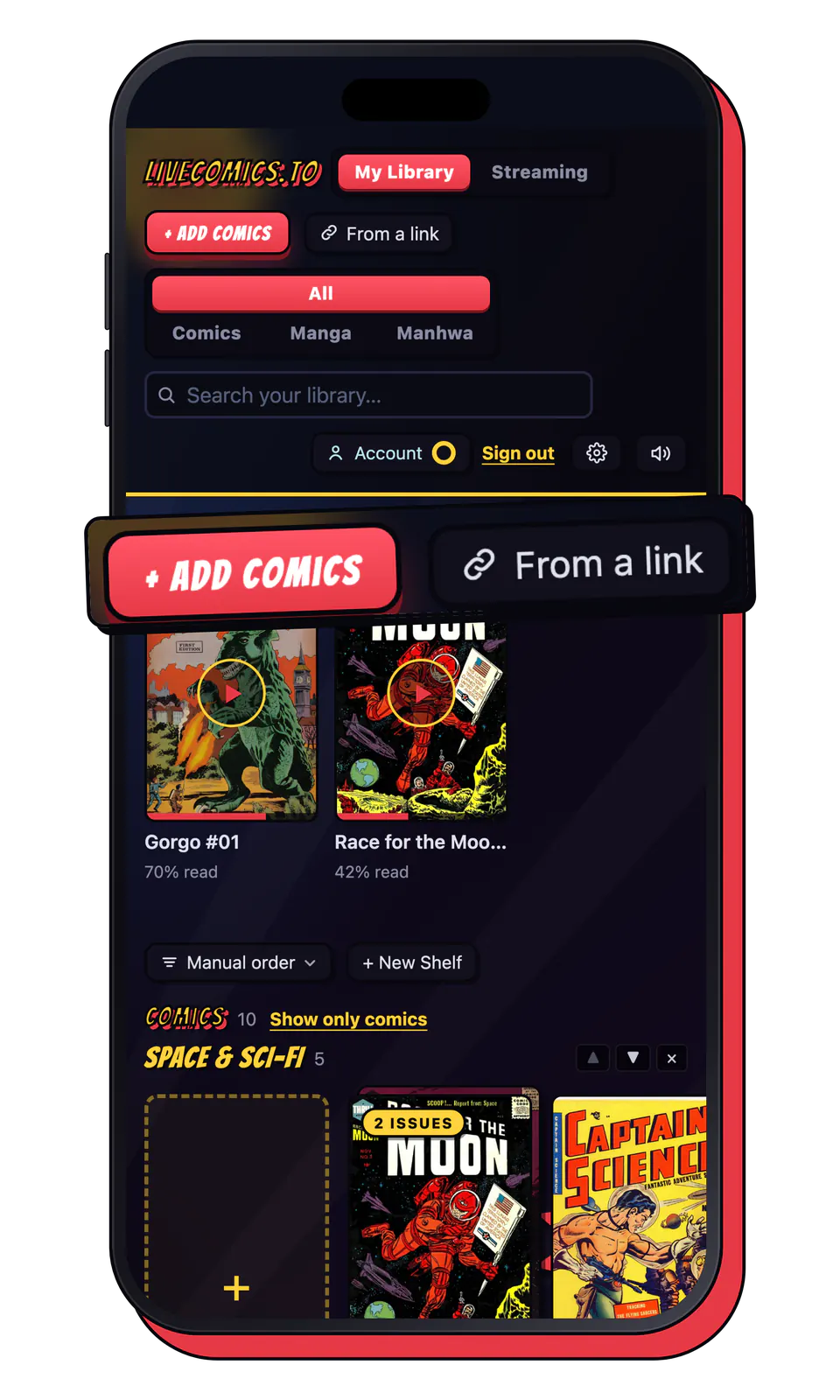
- Tap From a link, next to + Add Comics.
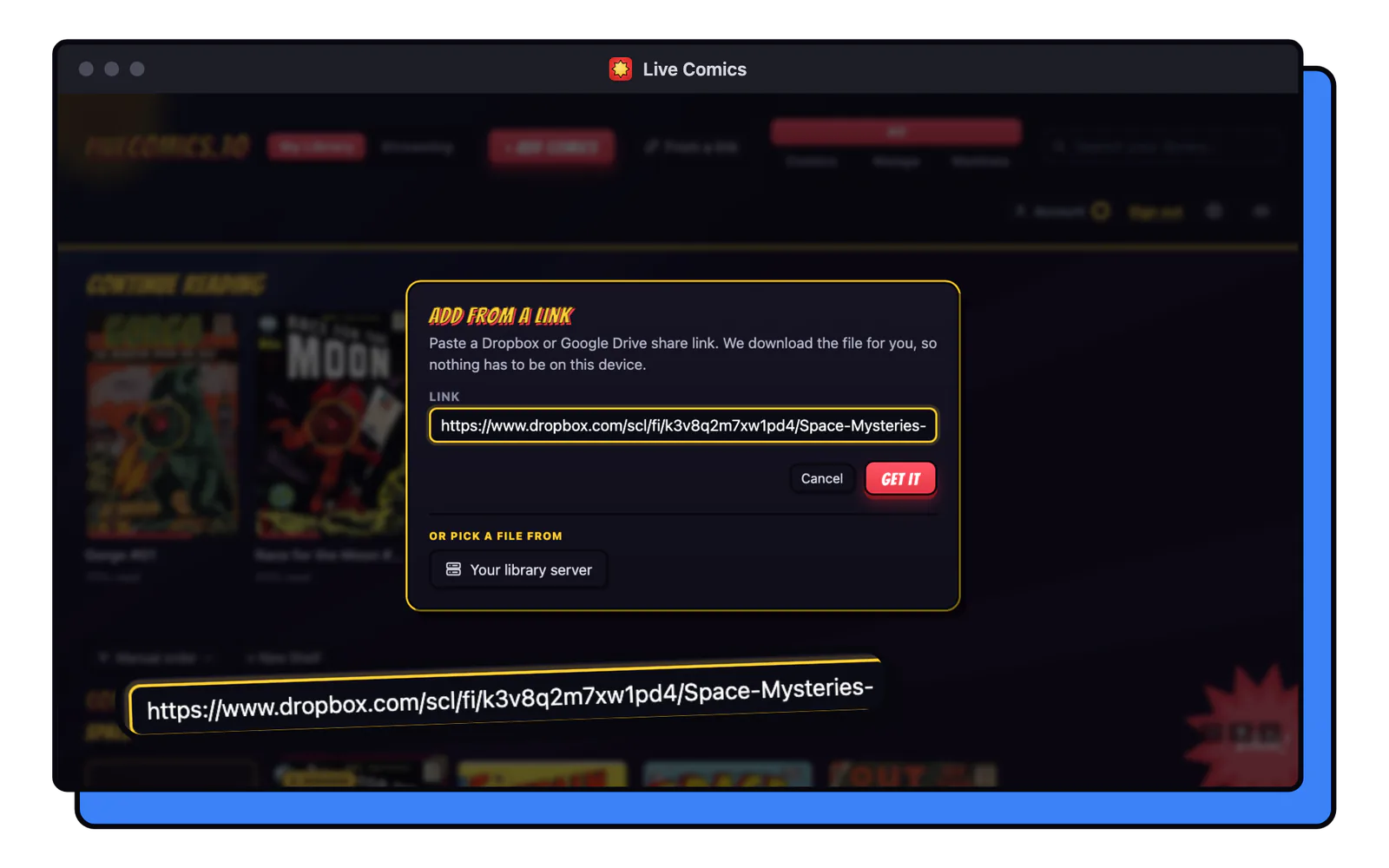
- Paste the link and press Get it. The download runs on our side, so it won't use your data plan, and if the connection drops it picks up where it left off.
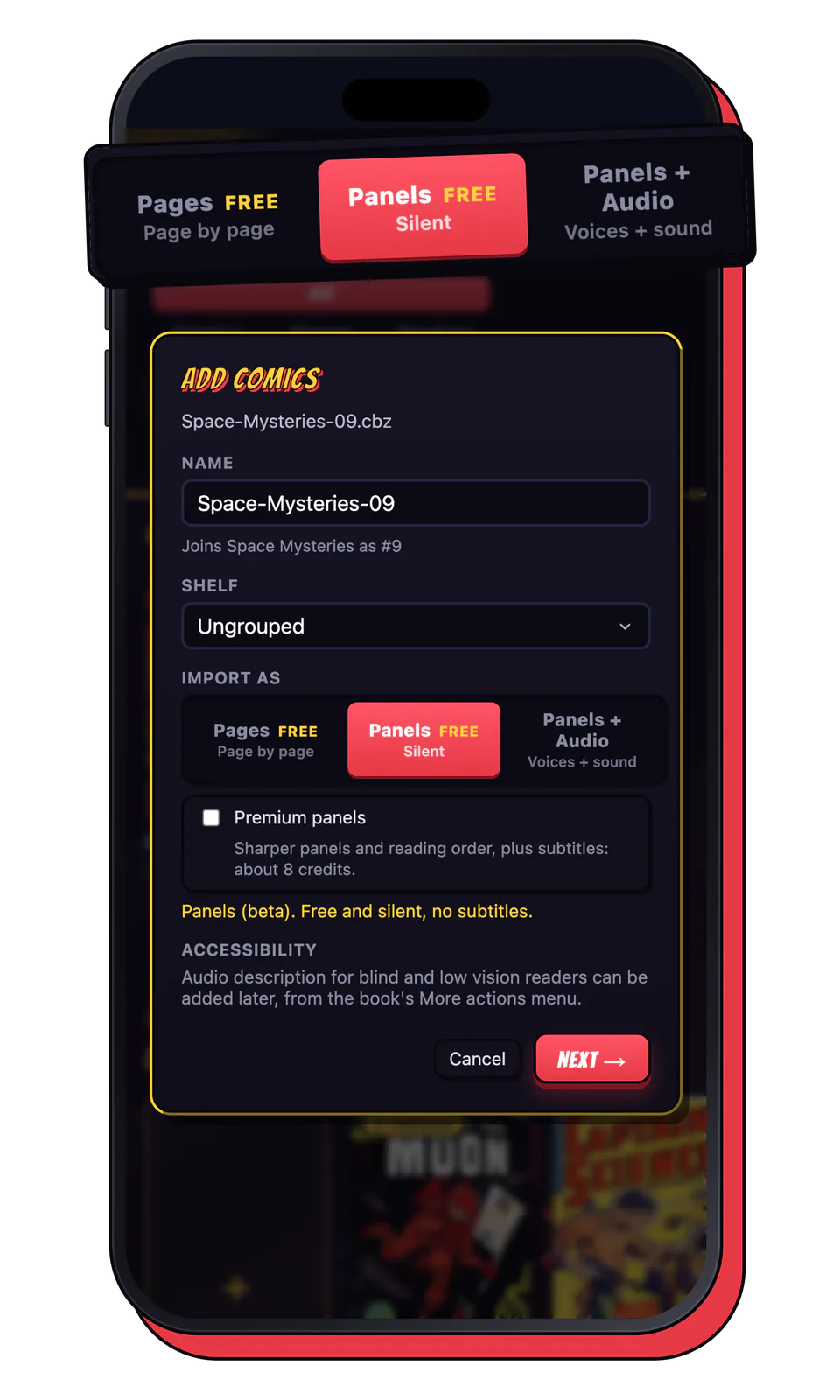
- When the download is done, choose Pages, Panels or Panels + Audio under Import as, press Next, pick the reading type and press Add.
Link one comic file at a time, not a folder: a CBZ, CBR or PDF of up to 2.6 GB. A free account imports 30 comics a month and holds 1 GB, about 20 single issues, with no card.
Can I read Dropbox comics one panel at a time, or aloud?
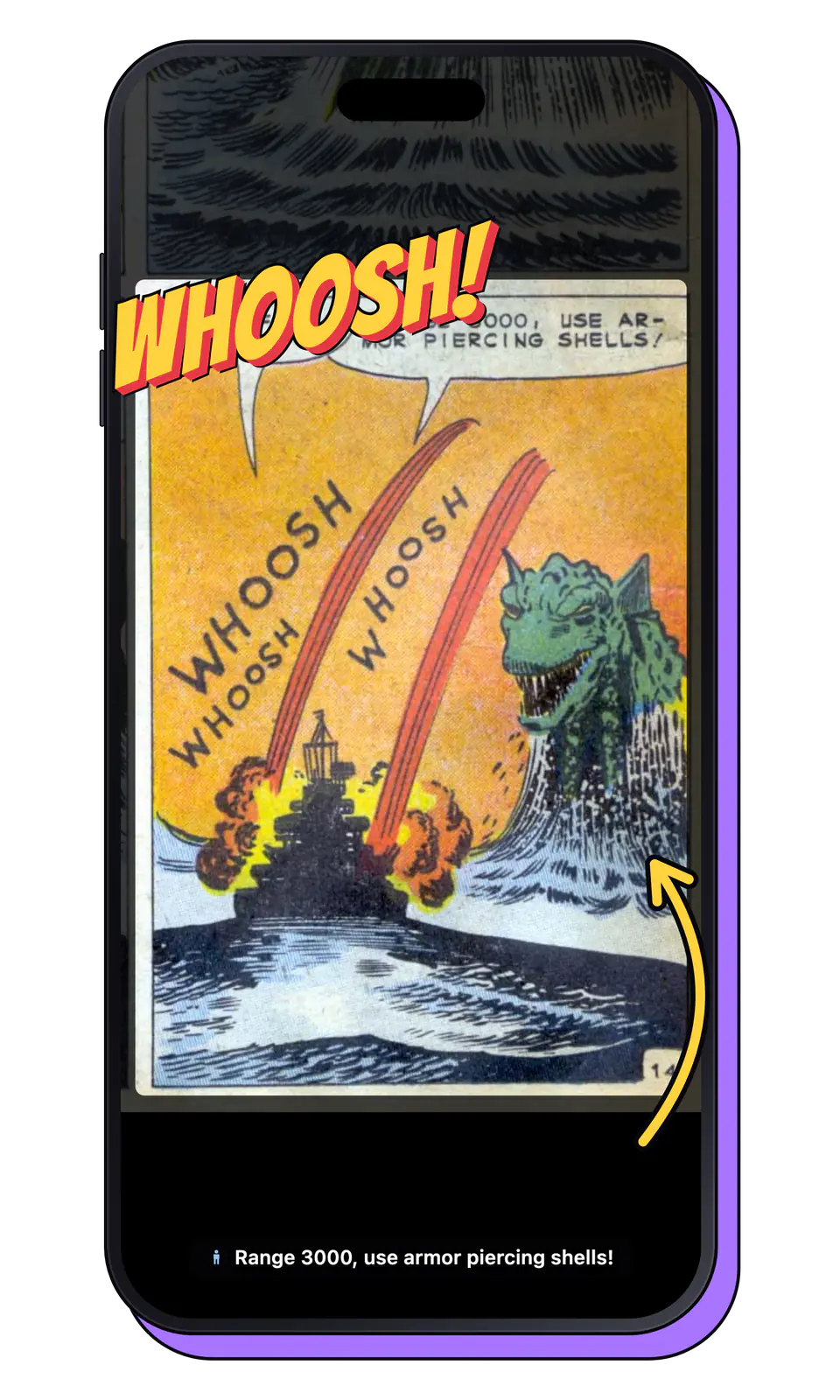
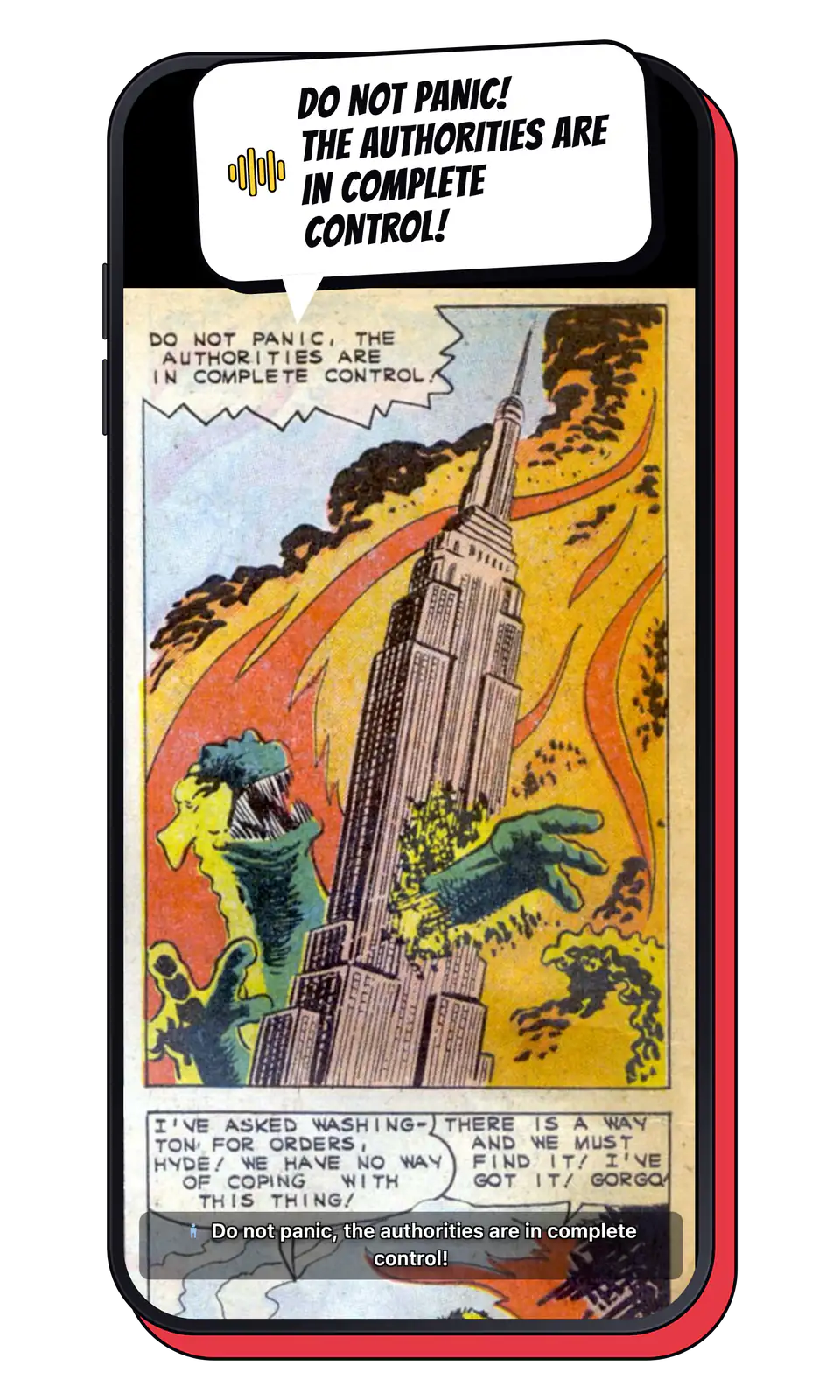
Yes. Choose Panels and the comic plays one panel at a time, framed to fill the screen, free on every issue. Choose Panels + Audio and every speech balloon is read aloud by two synthetic narrators matched to each speaker, with the drawn sound effects and a soundscape under every scene. Voices come with a monthly plan or a top-up, and you see the price in credits before you press Add.
Can I read comics from Dropbox on my iPhone, iPad or Android?
Yes. Paste the link in the LiveComics app or at livecomics.to in your phone's browser. Our servers do the download, so the file never has to fit on your phone, and your place is kept on every device you sign in on.
App Store · Google Play · Microsoft Store · Comic reader for iPhone · Comic reader for iPad · Comic reader for Android
Can I read manga from Dropbox?
Yes. Paste a volume's Dropbox link the same way, and at the reading type step choose Manga, so the panels play right to left. Choose Manhwa for a webtoon or manhwa and it reads as one long scroll, top to bottom.
Do I have to connect my Dropbox account?
No. LiveComics never signs in to your Dropbox and never sees your other files: it downloads only the file whose link you paste. It keeps its own copy of the comic on your shelf, so once the comic is there you can delete the link in Dropbox and keep reading.
What can't be added from a Dropbox link?
A folder link: share each comic file and paste its link in turn. A link that only opens for your team or asks for a password: change the link's settings so anyone with the link can view it, then paste it again. EPUB comics, which you add from your device for now. Links from other services, such as OneDrive, iCloud, Box or MEGA, don't work either: download those files and add them from your device.
Straight answers
Can Dropbox open CBZ or CBR files?
Dropbox stores them, but it is cloud storage, not a comic reader. To read a CBZ or CBR from Dropbox page by page or one panel at a time, copy its share link and paste it into LiveComics, which brings it onto your shelf for you.
How do I read CBR files from Dropbox on my iPhone?
Copy the file's link in the Dropbox app, then paste it into From a link in the LiveComics app or at livecomics.to in Safari. The download happens on our side, not on your phone.
Is there a manga reader that works with Dropbox?
Yes. Paste a manga volume's Dropbox link into LiveComics and choose Manga as the reading type: it reads right to left, page by page or one panel at a time.
Can I add a whole Dropbox folder of comics?
No, one file per link. Share each issue and paste its link in turn.
Why won't my Dropbox link import?
Usually because the link only opens for some people, such as your team, or asks for a password. In Dropbox, change the link's settings so anyone with the link can view it, then copy it and paste it again. A folder link or an EPUB won't import either.
How big a comic can I add from Dropbox?
Up to 2.6 GB per file, the same as any upload. A big file is downloaded in parts, so a dropped connection picks up where it left off.
Is it free?
Yes, to add and read your comics. A free account imports 30 comics a month with 1 GB of storage and no card, Panels is free on every issue, and voices come with a monthly plan or a top-up.
Do I have to keep the Dropbox link?
No. Once the comic is on your shelf it has its own copy, so you can delete the link in Dropbox and keep reading.
LiveComics is not affiliated with Dropbox. Dropbox is named only to describe where your files are kept.
Read this page in: Español · 日本語 · Português · Français · Deutsch · Italiano · Polski · Türkçe · Indonesia · Tiếng Việt